
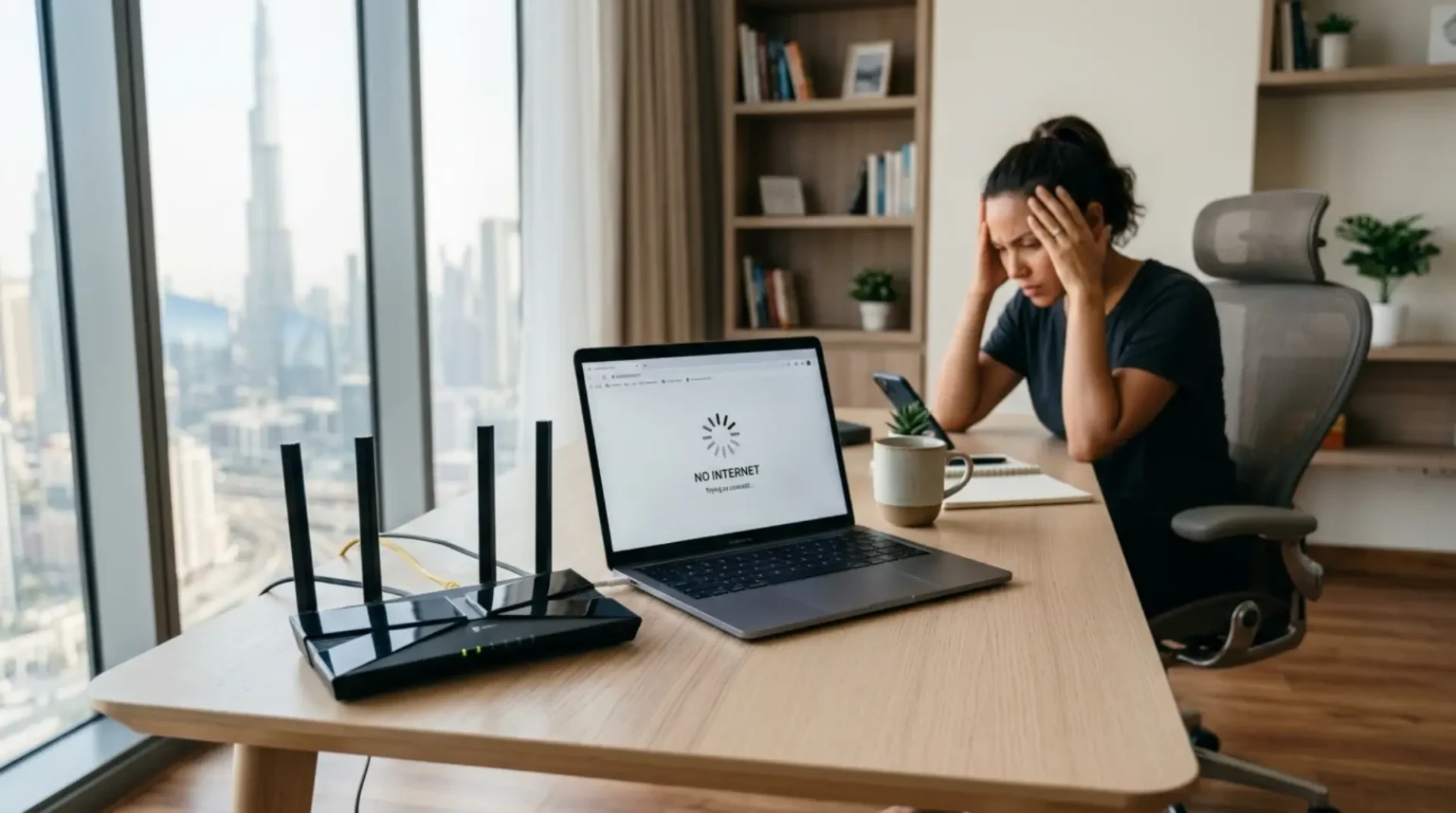
When the internet feels slow, it is easy to blame the provider or the monthly plan. However, the router plays a major role in how speed reaches your devices. If the router is not placed or configured properly, your internet may feel slow even when the main connection is working.
Many router setup mistakes slowly reduce speed across the home. This is why router mistakes cause slow WiFi during streaming, browsing, gaming, or video meetings. A better setup can often improve internet performance without immediately upgrading the plan.
The Router Is in the Wrong Room
The room where the router sits affects the entire network. If it is placed in a storage room, hallway corner, or near the entrance, the signal may not reach the rooms where people use the internet most. This creates weak areas and poor speed.
Move the router closer to the main usage area if possible. A living room or central hallway often works better than a far corner. The router should be able to send signals toward bedrooms, work areas, and entertainment spaces without too many barriers.
The Router Is Surrounded by Obstacles
A router surrounded by objects cannot perform well. Thick furniture, walls, mirrors, metal shelves, and electronics can block or reflect WiFi signals. This makes the connection weaker and less stable.
Keep the router clear. Avoid placing books, decorations, or devices around it. Do not place it behind a large screen or inside a closed cabinet. The more open the router is, the better it can broadcast the signal.
The Internet Plan and Router Do Not Match
Sometimes the internet plan is fast, but the router cannot deliver that speed wirelessly. Older routers may not support higher speeds or modern WiFi standards. This creates a speed limit inside the home network.
Check your router model and compare it with your internet speed and device count. If the router is outdated, it may need replacement. However, first check cables, firmware, placement, and settings. These factors can also limit speed.
Background Devices Are Using Bandwidth
Many devices use internet in the background. Phones upload photos, laptops download updates, smart TVs refresh apps, cameras upload recordings, and cloud services sync files. When many devices do this together, the internet feels slow.
Check which devices are connected and remove ones you do not use. Schedule large downloads outside busy hours when possible. If your router supports device priority, use it for work laptops, video calls, or streaming devices that need stable speed.
Old Router Software Is Causing Issues
Router firmware should not be ignored. Old firmware can cause bugs, security weaknesses, and compatibility issues with newer devices. If your router has not been updated for a long time, it may struggle to manage traffic efficiently.
Open the router app or admin page and check for updates. Install official updates only. Restart the router after the update. This can improve stability and sometimes restore better speed.
The WiFi Channel Is Too Crowded
In apartments and busy areas, many routers compete on the same WiFi channels. When channels are crowded, speed can drop even if the signal bars look strong. This is common during evening hours when many people are online.
Some routers handle channel selection automatically, but not always perfectly. If your router allows manual channel selection, testing a cleaner channel may help. This is especially useful on the 2.4GHz band.
Devices Are Connected to a Weak Band
A device may connect to the wrong band and perform poorly. The 5GHz band is fast but shorter range. The 2.4GHz band reaches farther but can be slower. If a device is far away on 5GHz, it may have weak signal. If a nearby device uses 2.4GHz, it may not get the best speed.
Test both bands on important devices. Use 5GHz near the router and 2.4GHz for longer range when needed. Better band selection can improve speed without changing equipment.
The Router Has Not Been Restarted
Routers can develop temporary performance issues when running for long periods. A proper restart clears temporary errors and refreshes the connection. This is not the same as a factory reset.
Turn off the router, wait around 30 seconds, and turn it back on. Do not press the reset button unless you want to erase settings. Restarting can help when the network becomes slow suddenly.
Fix the Setup Before Upgrading
Before paying for a faster plan, test your current setup. Run a speed test near the router and then in other rooms. If the speed drops with distance, the problem is WiFi coverage. If speed is poor near the router too, check the router, cables, firmware, or provider connection.
A properly set up router can make your existing internet plan feel much faster and more reliable.